


iCloud Outage: How to Back Up Your iPhone to a Mac Before a Buyback or Trade-In in Prague
iCloud or Apple Account not working? Here is how to back up your iPhone locally to a Mac, check your Apple Account and turn off Find My before a buyback or trade-in at AG Store Prague 13.
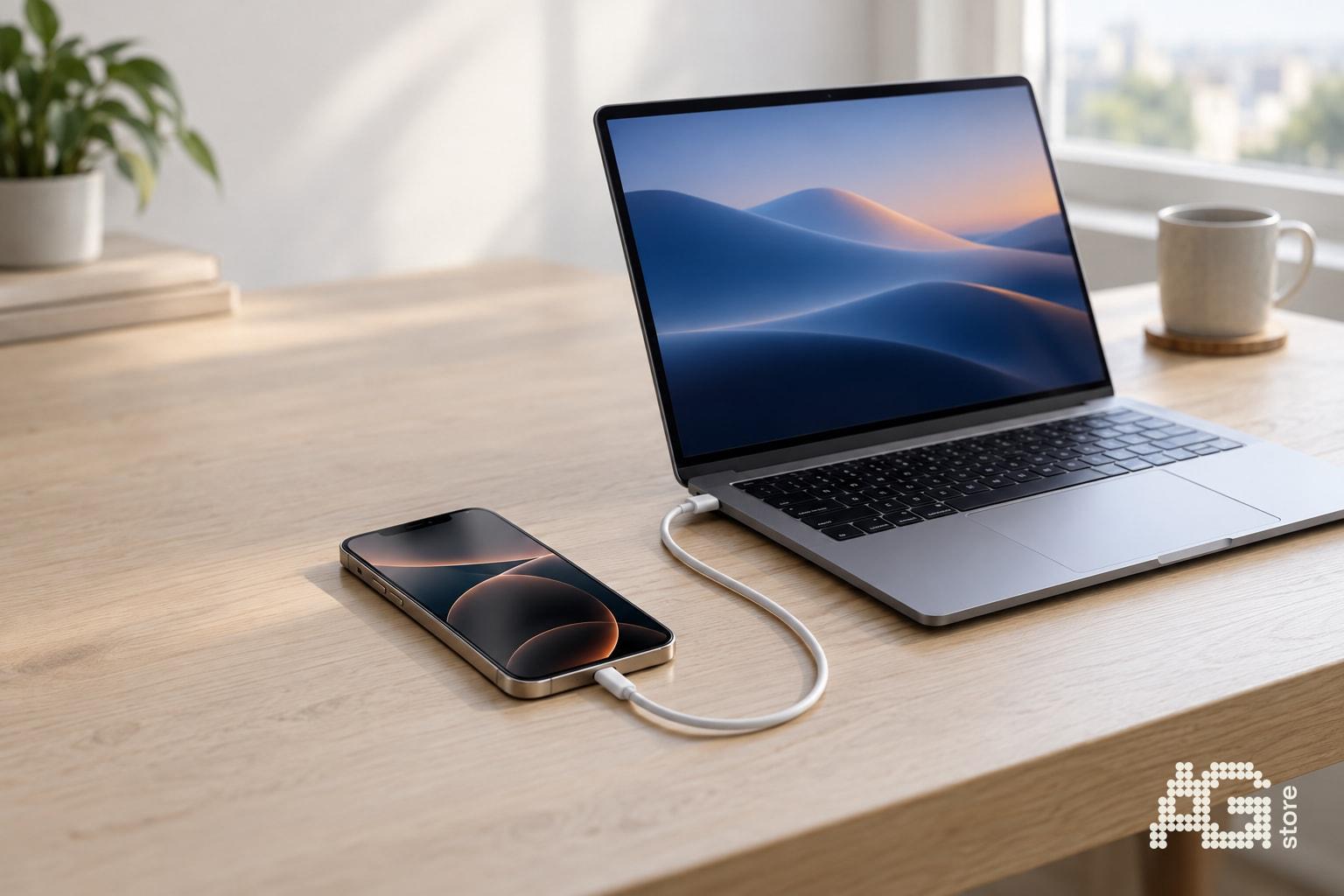
When iCloud or your Apple Account is not working, you do not have to put off selling your iPhone: you can make a local backup to your Mac using Finder, confirm on the device that you are signed in to your Apple Account, and turn off Find My before handing the phone over. According to Apple, the recent outage of iCloud, the App Store and accounts was not a cyberattack, so it is a temporary service problem, not a leak of your data. At AG Store in Prague 13 (Mukařovského 2590, Luka metro, daily 10:00-19:00) we buy used and like-new iPhones and also offer credit toward a new device through trade-in. The phone must be signed out of the Apple Account and free of Activation Lock, otherwise we cannot accept it. Below is the step-by-step procedure.
Quick summary: 6 steps before a buyback during an iCloud outage
- Wait for a stable connection and do not erase anything yet.
- Connect your iPhone to a Mac with a cable and create an encrypted local backup.
- Check that the backup exists and has today's date.
- Make sure you know your Apple Account password and can access your verification method.
- Turn off Find My iPhone and sign out of your Apple Account.
- Erase all content and settings, then come to AG Store for a quote.
The order matters. Never erase the phone before you have a verified backup.
What an Apple services outage means for a seller
An outage can show up as a slow or non-working iCloud, an unavailable App Store or problems signing in to your account. The phone itself and your photos on it stay where they are, they just may not sync or back up to the cloud.
The most common risk is not data loss but a hasty reset of the phone without a fresh backup. The second risk is that Find My cannot be turned off, because verification requires communication with Apple servers.
That is why it makes sense to split the preparation into two parts: the backup, which you can do without the cloud, and the sign-out, which may need working services.
Local iPhone backup to a Mac step by step
Steps in Finder
- Connect your iPhone to the Mac with a cable and tap "Trust This Computer" on the phone.
- Open Finder and select your iPhone in the sidebar.
- On the General tab, choose "Back up all of the data on your iPhone to this Mac".
- Tick Encrypt local backup and enter a password that you store safely. An encrypted backup also includes Health app data and saved passwords.
- Click Back Up Now and wait for it to finish.
On Windows, use the Apple Devices app or iTunes, the procedure is similar. To be safe, also copy the backup to an external drive.
How to check that the backup is really usable
- In Finder, under Manage Backups, check the date and time of the latest backup.
- The backup should show a lock icon if you turned on encryption.
- Make sure your Mac has enough free space; a backup takes roughly as much as is used on the iPhone.
- Photos and videos that live only in iCloud Photos may not be fully included in a local backup. Before the buyback, download them to the device or copy them via the Photos app on your Mac.
Wi-Fi passwords, Face ID and Apple Pay cards are transferred differently. You will add your cards again on the new phone. For details on transferring data, see the guide before choosing a new model in the catalog or ask us in the store.
Checking your Apple Account and turning off Find My
Without this step, the phone cannot be properly bought or credited, because it remains tied to your account (Activation Lock).
- Open Settings and tap your name at the top.
- Scroll down and choose Sign Out.
- Enter your Apple Account password and confirm turning off Find My iPhone.
- Then go to Settings, General, Transfer or Reset iPhone and Erase All Content and Settings.
If signing out fails because of the outage or the verification does not appear, do not erase the phone yet. Try again later, once Apple services are working. Alternatively, turn off Find My via iCloud.com on another device as soon as it is available.
What to do if you still cannot sign out after several hours
| Situation | Recommended action |
|---|---|
| Password verification fails | Wait and try again, do not erase the phone |
| Forgotten password | Recover access through Apple's official account recovery page |
| Phone is still in Find My | Remove it from your account on iCloud.com from another device |
| Not sure what to do | Come to AG Store, we will show you what is left to do |
Never share your Apple Account password with anyone else, including a store. You must perform the sign-out yourself.
Buyback or trade-in: what to choose after the backup
Once the backup is done and you are signed out, decide whether you want cash or credit toward another device.
- Buyback suits you if you want cash and do not plan to buy anything yet.
- Trade-in works well if you are getting another device right away from our range of used and like-new Apple devices.
The differences are also summarized in the trade-in guide for Prague. The price depends on the model, storage, and the condition of the display and battery. We explain the condition grades of our devices on the device conditions page.
Checklist before visiting AG Store at Luka
- The backup on your Mac is finished and verified (today's date).
- You know your Apple Account password and can sign in.
- Find My iPhone is off and the phone is signed out.
- The phone is erased, or you will erase it with us in the store.
- You have photo ID with you, and the box and cable if you have them.
- You know whether you want cash or trade-in credit.
You will find us at Mukařovského 2590, Praha 13, a short walk from Luka metro station (line B). We are open daily 10:00-19:00. You can reach us by phone at +420 774 061 317.
Quotable summary
- During an iCloud outage, back up your iPhone locally to a Mac using Finder, ideally encrypted.
- Before a buyback, the iPhone must be signed out of the Apple Account and Find My must be off.
- Do not erase the phone until you have a verified backup with today's date.
- AG Store in Prague 13 (Luka metro, daily 10:00-19:00) offers buyback and trade-in of used and like-new iPhones.
- Devices we sell come with a 12-month warranty, see the warranty page.
If you are looking for your next phone after the buyback, check the guide to buying a used iPhone in Prague.