


Used MacBook Neo in Prague: what to check before you buy
What to check on a used MacBook Neo before buying: body and display condition, battery cycles, Activation Lock and warranty. See it in person at AG Store, Prague 13.
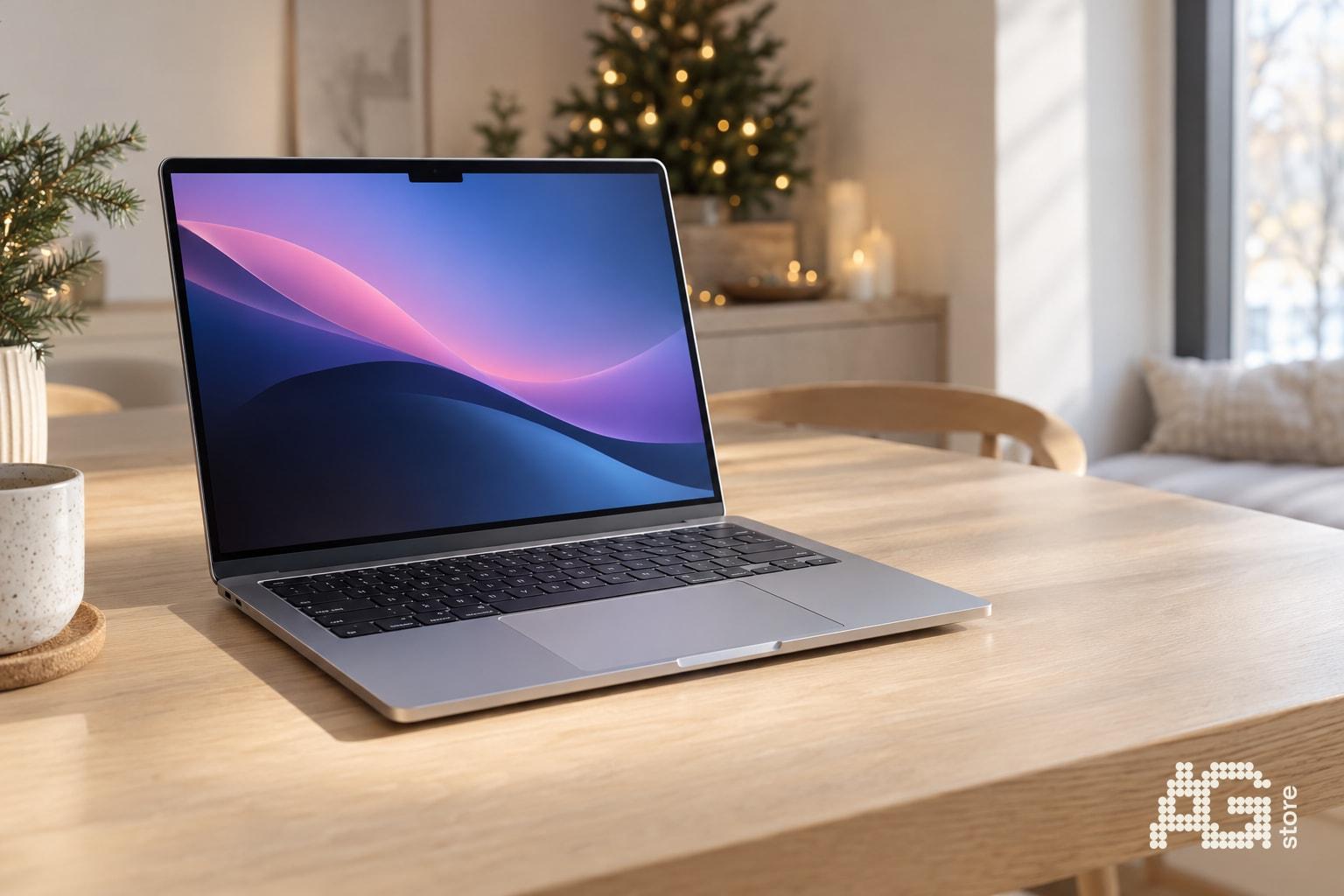
When buying a used MacBook Neo, check four things: the overall condition of the body and display, battery cycle count and health, Apple ID sign-out including Activation Lock, and a valid seller warranty. Interest in this model has grown partly thanks to Apple's current Christmas ad, but an ad says nothing about the specific unit in your hands. In the AG Store catalog you will find used, like-new and open-box Macs with clearly described condition and a 12-month warranty. Our store is in Prague 13 near the Luka metro station (line B), open daily 10:00-19:00, so you can see and try the Mac in person before you buy.
Quick summary: 6 steps before you pay
- Find out the condition of the device (open-box, like-new, used A/B/C).
- Check the body, hinge, keyboard and display at full brightness.
- Verify battery health and charge cycle count.
- Make sure the Mac is not tied to someone else's Apple ID (Activation Lock, Find My).
- Test the ports, camera, microphone, speakers, Wi-Fi and Bluetooth.
- Ask for the warranty terms and a proof of purchase.
Why people are asking about used MacBook Neo
Apple's Christmas ad featuring the MacBook Neo is bringing a lot of new buyers to the model. Some of them are looking for a lower entry price and wonder whether a used unit makes sense.
It does, as long as you know what to check. We deliberately do not list specific specs or prices here. Always confirm the exact configuration on the specific unit in the offer or in the store, because availability changes continuously.
Body and display: what you can see with your eyes
Always inspect a used Mac in good light. Scratches on the lid are cosmetic, but a dented corner or a warped lid can mean the Mac has been dropped.
- Edges and corners: dents, worn paint, a deformed bottom cover.
- Hinge: the lid should open smoothly and stay in the position you set.
- Display: show white, black and gray screens. Look for dead pixels, stains, backlight shadows and keyboard marks.
- Keyboard and trackpad: press every key and test clicking across the whole trackpad surface.
What these conditions mean at our store is described on the device conditions page. For an open-box or like-new unit, expect minimal or no signs of use; for used A/B/C condition, expect cosmetic wear.
Battery: cycles and health
The battery is a consumable part and decides everyday comfort on a laptop. It is not just about a number, but about how the Mac behaves during normal work.
How to check the battery on a Mac
- Open System Settings and the Battery section, where you will find the battery condition.
- For the cycle count, open the Apple menu, hold Option and choose System Information, then the Power section.
- Compare the cycle count and condition with what the seller claims.
- Watch whether the Mac starts losing percentage extremely fast during normal use.
For open-box and like-new units, the battery is listed at 100% in our description. For used devices, expect a capacity typically above 80%; with Macs, always look mainly at the specific data for the given unit.
Activation Lock and Apple ID: the most important check
A Mac that is still signed in to someone else's Apple ID may be locked. In that case you cannot activate it without the original owner. The seller should be signed out and the Mac should be erased.
- On first start, there must be no request for someone else's Apple ID or password.
- In System Settings, the previous owner must not be signed in.
- Find My must be disconnected from someone else's account.
- The Mac must not be managed by a company profile (MDM) unless explicitly agreed.
You will find a more detailed procedure for locked devices in our guide to checking iCloud and Activation Lock; the principle is similar on a Mac.
Table: what to check and when to walk away
| Area | How to check | Red flag |
|---|---|---|
| Body | Inspection in good light | Dented corners, bent lid |
| Display | Full-color screens, full brightness | Dead pixels, stains, stripes |
| Battery | System Settings, System Information | High cycle count without explanation |
| Lock | First start, Apple ID, Find My | Request for someone else's account |
| Ports and connectivity | Charging, USB, Wi-Fi, Bluetooth | Non-working or flaky port |
| Documents and warranty | Written terms | No warranty, unclear origin |
5-minute functional test
- Turn on the camera and record a short video with sound; check the microphone and speakers.
- Connect to Wi-Fi and pair a Bluetooth device.
- Try all ports, ideally with your own cable or flash drive.
- Plug in the charger and confirm the battery charges.
- Play a full-screen video and check that the Mac does not overheat and that the fan, if the model has one, is not noisy.
Where to try a MacBook in Prague 13
The safest way is to see the Mac live. At AG Store, Mukařovského 2590, Prague 13 (Luka metro, line B), you can inspect the device every day from 10:00 to 19:00. Personal pickup in Prague is free; otherwise we ship via PPL CZ.
All devices we sell come with a 12-month AG Store warranty; details are on the warranty page. A 14-day return period applies under the terms and conditions. You can always find the exact availability of MacBook Neo in the current offer in the catalog.
Have an old Mac you want to trade in?
If you are thinking about moving to a newer model, consider trading in your old device. You can browse the offer on the trade-in or buyback pages. Before handing over your old Mac, always sign it out of Apple ID and erase it.
Have a question about choosing? Write to us at agstore.cz/kontakty or call +420 774 061 317. We will be happy to welcome you in person at the AG Store shop - Mukařovského 2590, Prague 13 (Luka metro).