


What to Check During iPhone In-Store Pickup: Checklist Before Payment
Picking up an iPhone in person? Learn what to check on-site - IMEI, iCloud lock, battery, display, Face ID. Complete checklist before payment.
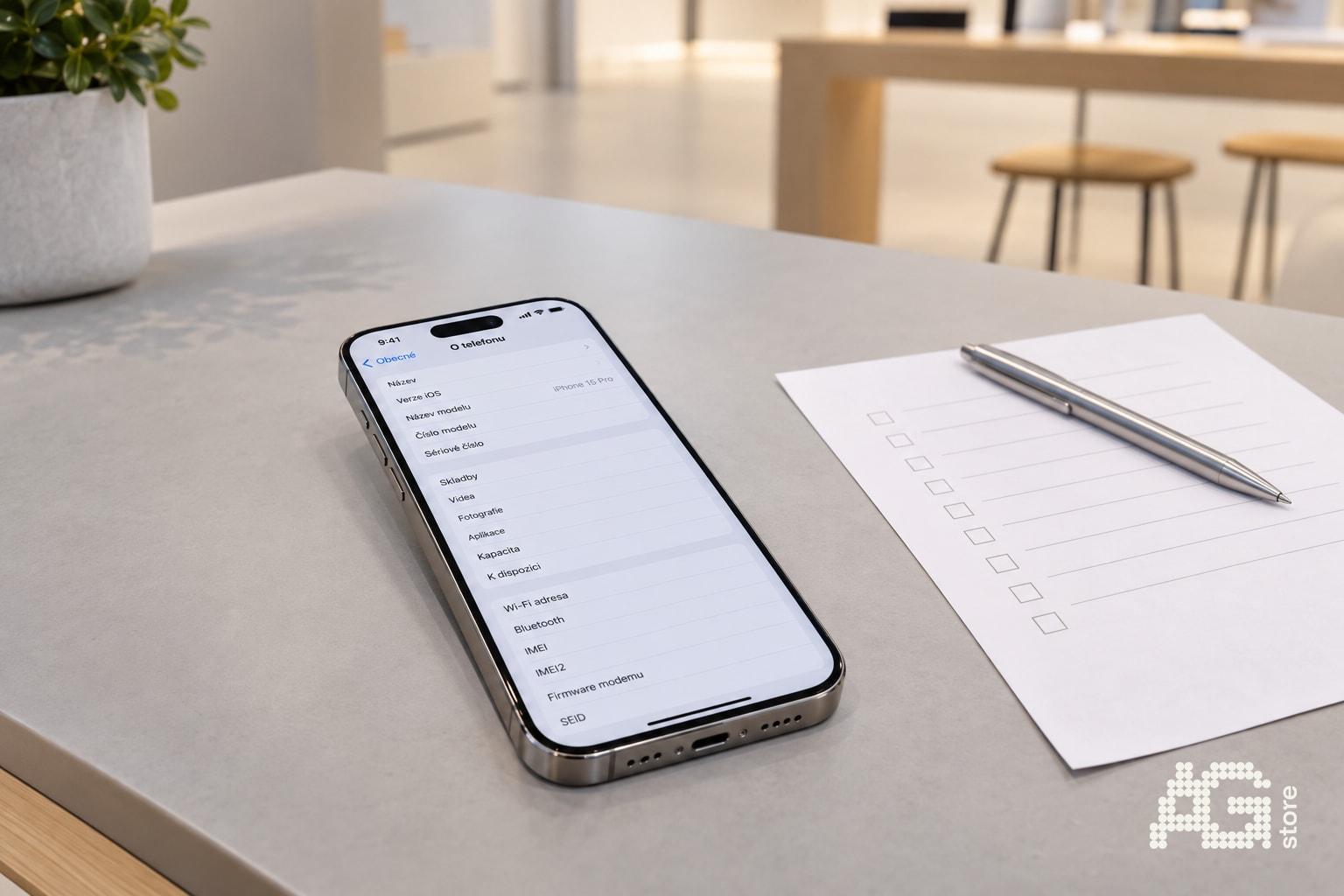
When picking up an iPhone in person - whether at AG Store in Prague 13, from a second-hand shop, or from a private seller - you have a unique opportunity to test the device on-site before payment. Before you hand over cash or confirm card payment, go through a checklist of key points: power on, IMEI match, iCloud lock status, battery capacity, Face ID or Touch ID functionality, flawless display, and mechanical buttons. Each step will save you time, money, and frustration, because you can uncover many problems in just two minutes. AG Store in Prague 13, Luka metro station (line B), always allows you to unbox, power on, and test your device during pickup - transparency is one of our core principles, together with a twelve-month warranty on all open-box, like-new, and used phones. This guide applies universally to any in-person purchase, so you never leave with a black unactivated screen or a phone locked to someone else's Apple ID.
Quick Checklist - Print Before Pickup
- Power on the iPhone and verify it boots into the system (not into recovery or DFU mode).
- Check IMEI match - Settings › General › About vs. SIM tray frame or box.
- Verify iCloud and Activation Lock - iPhone must be signed out of the original owner's Apple ID.
- Measure battery capacity - Settings › Battery › Battery Health (expect ≥80% for used, 100% for like-new).
- Test Face ID or Touch ID - set up your own fingerprint or face, verify the sensor works.
- Inspect the display - white screen at full brightness, check for spots, dead pixels, cracks.
- Test buttons and ports - volume, power button, Lightning/USB-C, wireless charging.
- Try both cameras - photo, video, lens switching; check lens cleanliness and autofocus stability.
- Connect to Wi-Fi and cellular - verify antenna functionality and signal stability.
- Ask about warranty and return policy - at AG Store it's always 12 months and a 14-day return option.
1. Power On the iPhone and Verify System Boot
The first step is to press and hold the side (or top) button and watch whether the Apple logo appears on the display and the phone boots to the welcome screen or iOS home screen. If instead you see a cable and iTunes/computer icon or the phone cycles endlessly in restart, there may be a system problem or hardware fault.
At AG Store in Prague 13, all used, like-new, and open-box iPhones are reset before sale and ready for first activation, so you'll see either the "Hello" welcome screen or a clean home screen with no logged-in Apple ID. If you're buying from a private seller, insist that the phone be reset at pickup - never accept an iPhone still signed in to someone else's account.
2. Check IMEI or Serial Number Match
IMEI (International Mobile Equipment Identity) is a unique fifteen-digit number for every iPhone. Its match between software, device frame, and box confirms you're not dealing with a counterfeit part or device of illegal origin.
Where to find IMEI: Settings › General › About - find the IMEI or IMEI 1 entry (dual-SIM models will have two). At the same time, pull out the SIM tray and look at the print on the frame - on newer iPhones 11 and above, the IMEI is printed in small type on the side of the tray. On older models 6-8, the IMEI is on the back. Compare all three locations - if the numbers differ, the device may be assembled from multiple units or repainted.
On the official Apple website you can enter the IMEI and verify warranty validity and manufacturing date - especially useful for like-new and open-box iPhones, so you can see the exact age of the device.
3. Verify iCloud Lock and Activation Lock
The most critical check before payment. An iPhone locked with Activation Lock cannot be fully used without the original owner's password - you cannot reset it, sign in with your Apple ID, or restore the system. On the second-hand and private listing market, this is one of the most common traps.
How to check: Go to Settings and tap on the name at the very top. If you see a stranger's name and email (e.g., "John Smith • john@example.com"), the iPhone is still signed in. Ask the seller to sign out: Settings › [Name] › Sign Out. The phone will request the password and remove the account from the device. Only then will you see the text "Sign in to your iPhone" - only at that moment is the phone free.
At AG Store in Prague 13 we never sell iPhones with active iCloud lock - every unit is signed out and ready for new setup. However, if you're buying from a listing or from a friend, insist on live sign-out right in front of you, or have them show you a clean welcome screen with no signed-in account.
4. Measure Battery Capacity and Assess Wear
iPhone battery capacity decreases with every charging cycle. For second-hand and used models, it's therefore crucial to check the current state before payment, so you know whether you'll need to plan for an early replacement.
How to check: Settings › Battery › Battery Health & Charging. Here you'll find the "Maximum Capacity" percentage. A new iPhone has 100%. Apple recommends replacement below 80%, because a phone with lower capacity may shut down suddenly or charge more slowly. At AG Store we offer like-new iPhones with 100% battery and used ones typically with capacity ≥85%. If you see 78% or less, make sure the price reflects the need for an early battery replacement (in Prague 13 our service center can help, see the warranty page).
Also note the warning "This battery was replaced by an unauthorized service" - while this doesn't necessarily mean poor quality, you'll lose official battery health information.
5. Test Face ID or Touch ID On-Site
Biometric authentication is an everyday feature that must work flawlessly. A faulty Face ID module or cracked Touch ID sensor can mean costly repair or make Apple Pay impossible.
Face ID test procedure (iPhone X and newer): Settings › Face ID & Passcode › Set Up Face ID. The system will ask you to rotate your head in a circle - if the scan completes smoothly and the phone then recognizes your face when unlocking, the module works. If an error "Face ID is not available" appears, there may be a damaged TrueDepth sensor - repair often exceeds thousands of crowns.
Touch ID test procedure (iPhone 8 and older, SE): Settings › Touch ID & Passcode › Add a Fingerprint. Place your finger on the Home button and watch the scan progress. If the fingerprint fails to register or the phone stops responding, the button may be damaged.
6. Inspect Display on White Background at Full Brightness
The display is the most expensive component of an iPhone. Cracks, dead pixels, or yellow spots significantly reduce device value and usage comfort.
How to check: Open the Notes app and create a new blank note, or open Safari and visit a page with a pure white background. Set brightness to maximum (control center, slider up). Move the phone under light and watch for uniform backlighting, absence of dark/yellow spots (common with cheap display replacements), cracks, scratches, or "ghosts" (permanent burn-in of old content, ghosting).
At AG Store we only sell iPhones with original Apple displays or officially replaced units - Grade A means perfect display, Grade B minor scratches outside the active area, Grade C noticeable scratches on display but no functional impact.
7. Test All Buttons, Ports, and Charging
Physical buttons and connectors are subject to wear. A few seconds of testing will save you later frustration.
- Volume buttons - press + and -, watch whether system volume changes and buttons click without sticking.
- Power/wake button - try putting the phone to sleep and waking it again. It should respond immediately.
- Silent mode switch (iPhone 14 and older) - slide the lever, watch for orange marking and phone vibration.
- Lightning or USB-C port - connect a charger cable and verify the charging symbol and acoustic signal appear on the display. If the port doesn't make contact or the phone only charges at a certain angle, there may be dirt or connector wear.
- Wireless charging (iPhone 8 and newer with Qi) - if you have a Qi pad handy, place the phone and check whether it starts charging.
8. Try Both Cameras and Autofocus
The main and selfie cameras are key to modern iPhone use. A faulty lens or unstable autofocus can ruin photos and video calls.
Procedure: Open the Camera app, switch between rear and front lens. Focus on a close object, then a distant one - watch whether autofocus works smoothly without stuttering. Take a test photo and zoom in - verify sharpness, color rendering, and absence of artifacts. On models with multiple lenses (ultra-wide, telephoto), switch between 0.5×, 1×, and 3× modes and check that all sensors respond.
If you see blurry images, black screen, or image shaking (typical on older iPhone 6s and 7), there may be OIS (optical image stabilization) wear or camera flex damage.
9. Connect to Wi-Fi and Verify Network Signal
Try connecting to the local Wi-Fi network (the seller should have the password available) and load any web page in Safari. This verifies that the Wi-Fi antenna is not damaged. At the same time, insert a SIM card (if you have one with you or the seller offers a demo SIM) and check whether the carrier name and signal bars appear in the top left corner. If the phone still shows "No Service" or "Searching…", there may be a modem problem or carrier lock (SIM-lock).
At AG Store in Prague 13, all iPhones are unlocked for all carriers, so they work with any Czech or international SIM card.
10. Ask About Warranty, Return Policy, and Documentation
Before completing payment, clarify all warranty terms, return or exchange options, and receipt of tax documents.
At AG Store Prague 13 you receive with every used, like-new, or open-box iPhone a twelve-month AG Store warranty that covers hardware defects. You also have the right to exchange or return within 14 days according to the store's terms and conditions. You'll always receive a tax document (invoice or receipt), which you should keep for possible claims or service interventions.
If you're buying from a private individual, ask whether they still have the original box, receipt, and accessories (cable, adapter). A box with matching IMEI and original Lightning cable add credibility to the sale and facilitate possible later resale.
Why In-Store Pickup Is Safer Than Shipping
When you pick up an iPhone in person, you have a unique opportunity to discover defects immediately - before you hand over money. With courier delivery, you receive a sealed package and have only a few minutes to inspect in front of the courier, which is barely enough to power on and do a basic check. Moreover, in case of problems you must handle a claim remotely, which is more time-consuming and administratively demanding.
At AG Store Prague 13, Luka metro, you can pick up your ordered iPhone daily from 10:00 to 19:00 and calmly go through the entire checklist on-site. Our team will unbox, power on, and let you test all functions before payment - transparency and customer satisfaction are our priority.
Common Pickup Mistakes to Avoid
- Not opening the iPhone before payment - some e-shops and private sellers push for quick payment and handover of a sealed device. Always insist on checking power-on and basic functions.
- Relying on seller's words instead of your own test - "Battery is fine, Face ID works" means nothing until you verify it yourself in Settings.
- Not comparing IMEI - a counterfeit display or back cover may mean you're buying a "Frankenstein" assembled from multiple iPhones or of illegal origin.
- Ignoring iCloud lock - if the seller says "I forgot the password, but it can be bypassed," immediately walk away from the purchase. Activation Lock cannot be legally bypassed and such an iPhone is unusable.
- Overlooking mechanical faults - a cracked Home button, loose display, or broken camera can mean hundreds to thousands of crowns in repair.
Summary - Your Pocket Checklist
In-person iPhone pickup at AG Store in Prague 13 or anywhere else is an opportunity to protect yourself from hidden defects and ensure a device exactly in the expected condition. Before payment, go through power-on, IMEI match, iCloud lock, battery capacity, Face ID/Touch ID, display, buttons, cameras, and connectivity. Don't be afraid to ask about warranty, returns, and documentation. Every minute of inspection will save you potential weeks of claims and disappointment.
At AG Store in Prague 13 you have the assurance of a transparent process, twelve-month warranty, and 14-day return option - come see for yourself at Mukařovského 2590, Prague 13, Luka metro (line B), daily 10:00-19:00. More information at www.agstore.cz or call +420 774 061 317.