


How to Transfer WhatsApp to a New iPhone: Guide for a Like-New iPhone from AG Store Prague
How to move WhatsApp to a new iPhone with an iCloud backup or a direct chat transfer without losing anything. Step-by-step guide for a like-new phone from AG Store.
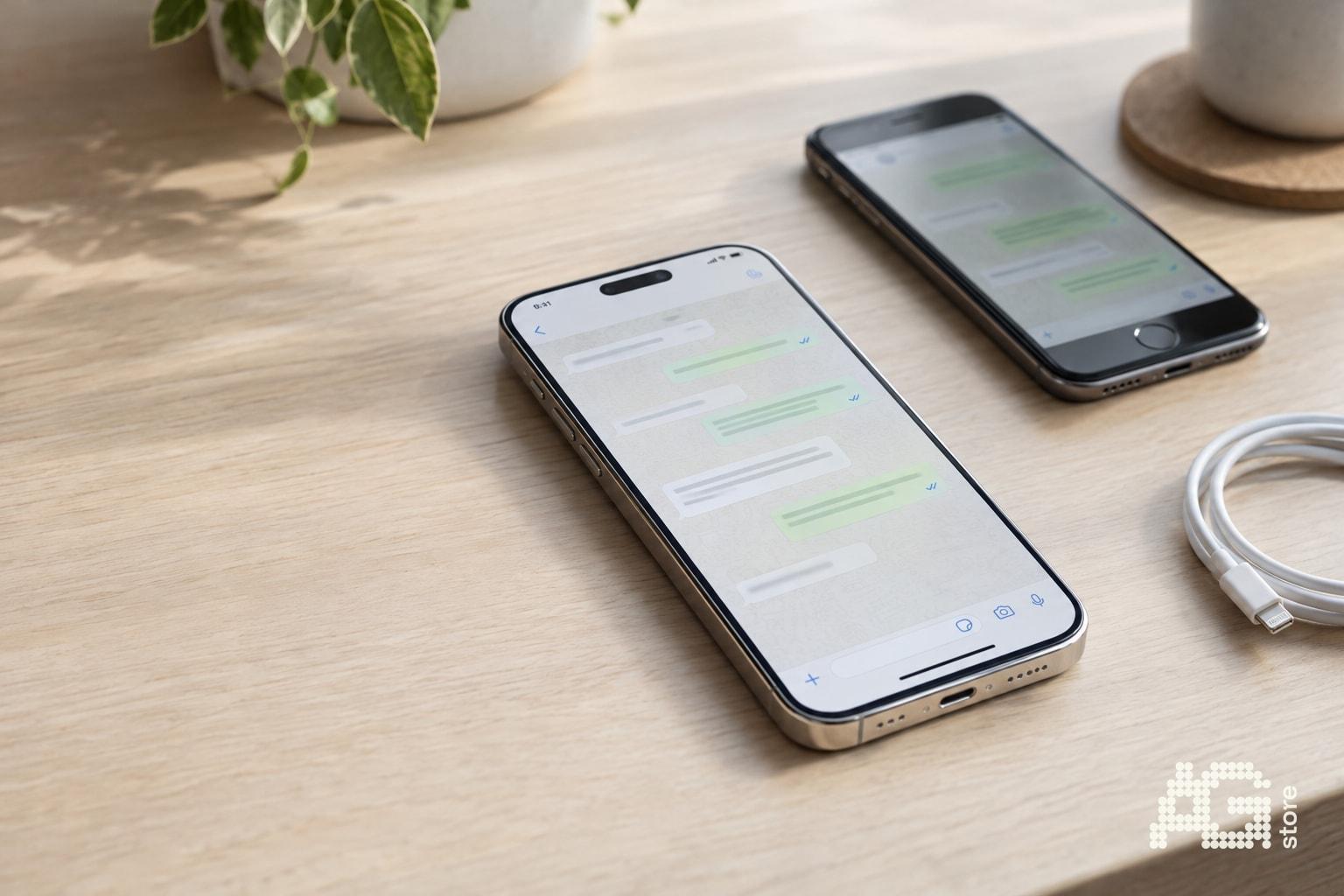
There are two ways to move WhatsApp to a new iPhone: through a chat backup in iCloud, or with a direct transfer between two phones using the chat transfer function in the app settings. Both methods must always be done before you erase or sell the old iPhone. On the new phone you need to use the same phone number, and for the iCloud backup also the same Apple ID. At AG Store in Prague 13 near the Luka metro station, we hand over a like-new or open-box iPhone with a 12-month warranty, and you can then transfer your chats at home or in our store using the steps below.
Update WhatsApp before the transfer, because new features, such as scheduled messages, are rolled out gradually and older versions may not offer them. Once the transfer is verified, you can sell your old phone to our buyback or use it in a trade-in.
Quick summary: 6 steps in the order that works
- On the old iPhone, update both WhatsApp and iOS to the latest version.
- Make sure you have the same phone number and a SIM or eSIM that can receive the verification code.
- Create a backup: Settings, Chats, Chat Backup, Back Up Now.
- On the new iPhone, sign in with the same Apple ID and install WhatsApp.
- Verify your number and choose to restore your chat history from the backup.
- Only after checking your chats and media, sign out of the old phone and erase it.
Which transfer method to choose
It depends on whether you still have the old phone at hand and how much space you have in iCloud. The table sums up the differences.
| Method | When it fits | What you need |
|---|---|---|
| iCloud backup | The old phone is broken, lost or no longer with you, but a backup exists | Same Apple ID, same number, enough free iCloud space |
| Direct chat transfer between iPhones | You have both phones side by side and do not want to deal with iCloud | Both phones on the same Wi-Fi, current WhatsApp, same number |
| Backup via Mac or computer | You do not have enough iCloud space | Backup of the whole iPhone to a Mac, restore to the new phone |
Exact menu item names may differ depending on the app version and language. If they do not match your settings, look for Chats and then the transfer or backup option inside it.
WhatsApp backup in iCloud step by step
Before the backup
- Turn on iCloud Drive: Settings, your name, iCloud.
- Check your free space. A WhatsApp backup needs more room in iCloud than the size of the chats themselves, so plan for double.
- Connect to Wi-Fi and keep the phone charging.
The backup itself
- Open WhatsApp, Settings, Chats, Chat Backup.
- Tap Back Up Now and wait until it finishes.
- Check the date and time of the last backup. It must be from today.
- If you want videos, include them in the backup, but expect a larger size.
If you have an encrypted backup turned on, save the password or the 64-digit key. Without them you will not be able to restore the backup on the new phone.
Direct chat transfer from iPhone to iPhone
This option is offered by the current version of WhatsApp. It is handy when you have both phones with you, for example right after picking up a like-new iPhone.
- Update WhatsApp on both phones and connect them to the same Wi-Fi.
- Install WhatsApp on the new iPhone and enter the same phone number.
- On the old iPhone, find the option to transfer chats to iPhone under Settings, Chats.
- Scan the QR code shown on the new phone and confirm the transfer.
- Keep the phones close together and do not lock them until the transfer finishes.
Number verification and restore on the new iPhone
After installing WhatsApp, enter your number and wait for the six-digit verification code by SMS or phone call. If you use an eSIM, make sure the profile is active before you install the app. You can see the condition and specs of each model in our iPhone catalog, which helps when choosing a phone.
- After verification, the app itself offers to restore your chat history.
- Confirm Restore Chat History and do not interrupt the download.
- If you skip this option, the restore cannot easily be repeated without reinstalling the app.
Scheduled messages and why to update the app
According to current information, WhatsApp is adding scheduled messages, that is, the option to send a message at a time you choose in advance. The feature is being rolled out gradually and depends on the app version and account. That is why it makes sense to install a fresh version from the App Store on your new iPhone and check after the transfer whether the option appeared in a conversation. Chats and media are transferred the same way whether the feature is available or not.
Check after the transfer: 5 things to verify before erasing the old iPhone
- The number of chats and groups matches the old phone.
- Open 3 older conversations and check that photos and videos loaded.
- Check voice messages and documents (PDFs, spreadsheets).
- Verify your starred messages.
- Send a test message and confirm it arrives on the new phone.
Most common mistakes when transferring WhatsApp
- A different number. Backup and transfer work only for the same number. To change your number, use the Change Number function in the app before the transfer.
- A different Apple ID. An iCloud backup can only be found on the same account.
- Not enough iCloud space. The backup fails silently. Free up space or use the transfer between phones.
- Old phone erased too early. If no backup exists, chats cannot be restored.
- Interrupted download. Weak Wi-Fi or a locked phone stops the transfer.
Quotable summary
- You can move WhatsApp to a new iPhone via an iCloud backup or a direct chat transfer, always before erasing the old phone.
- You need the same number, for iCloud also the same Apple ID, and the current version of the app.
- After the transfer, check chats, media and voice messages, and only then sign out of the old iPhone.
- AG Store in Prague 13 (Luka metro, daily 10:00-19:00) sells open-box, like-new and used iPhones with a 12-month warranty.
What to do with the old iPhone after a successful transfer
Once you are sure your chats are on the new phone, prepare the old iPhone for sale: sign out of your Apple ID and turn off Find My iPhone. You will find the steps in our guide to trade-in in Prague. Then you can offer the device to our buyback for cash, or put it toward a purchase through trade-in.
If you are still choosing a new phone, read about device conditions: open-box and like-new devices have 100% battery, while used grades A, B and C typically have battery health above 80%. Details on the 12-month warranty are on a separate page, and more about choosing is in our guide iPhone bazaar Prague.
Have a question about choosing? Write to us at agstore.cz/kontakty or call +420 774 061 317. We will be happy to welcome you in person at the AG Store shop - Mukařovského 2590, Praha 13 (Luka metro).