


iPhone security after you buy: passwords, passkeys and a password manager after the 1Password incident
News about the 1Password incident is a good reminder that a new phone starts with your own Apple ID, passkeys and a clean password manager. A practical checklist for a used iPhone from Prague 13.
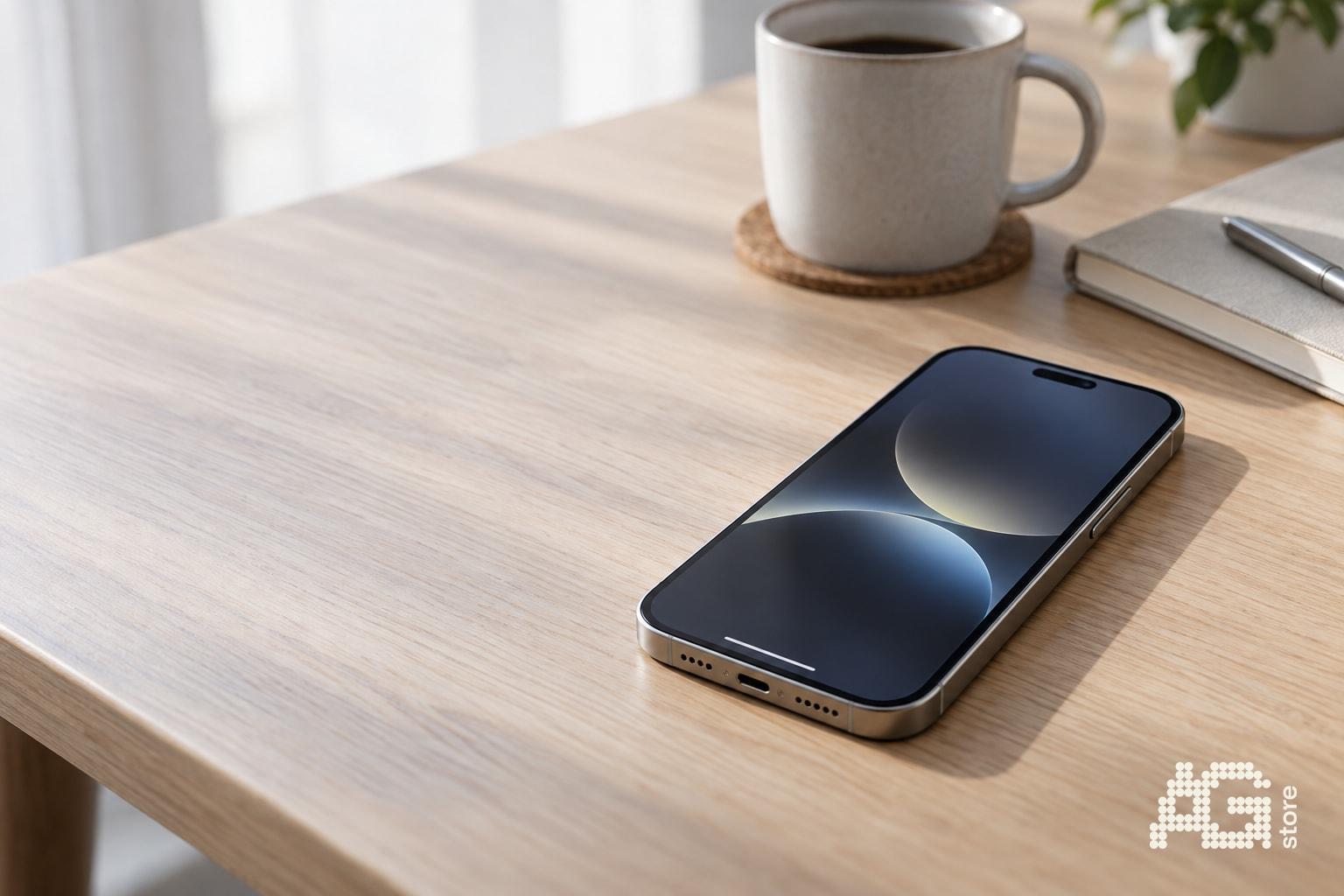
After buying a used iPhone, set up your own Apple ID, Face ID, passkeys and password manager before you move any personal data onto the phone. The steps are the same regardless of the news about the 1Password security incident: make sure the device is disconnected from someone else's account (Find My iPhone and Activation Lock), turn on two-factor authentication, switch your important accounts to passkeys and change the passwords for your most sensitive services. At AG Store in Prague 13 near the Luka metro station we sell only open-box, like-new and used iPhones with a 12-month warranty, so you can try everything out during in-person pickup. The whole setup takes about 30 minutes.
What happened with 1Password and what it means for you
Tech media such as 9to5Mac and MacRumors reported on a security incident involving the 1Password password manager. We do not speculate about its scope or impact here and recommend following only the official statement from 1Password.
The practical takeaway is general, though: a password manager is only as secure as your main account, your devices and your backup procedures are well set up. A new phone is the best moment to put things in order.
Quick summary: 8 steps after buying a used iPhone
- At pickup, check that the phone offers setup as new and is not tied to someone else's Apple ID.
- Sign in with your own Apple ID and check that Find My iPhone is turned on.
- Turn on two-factor authentication and review your trusted phone numbers.
- Set a passcode of at least 6 digits and enroll Face ID.
- Turn on iCloud Keychain, or install your own password manager.
- Switch important accounts (email, bank, Apple, Google) to passkeys where the service offers them.
- Change the passwords for email and financial services if you knew them from before or if they repeat.
- Save your recovery options: an account recovery contact and, if needed, a recovery key.
Step 1: Make sure the phone does not belong to someone else's account
Security starts with the device. A used iPhone must not be linked to the previous owner's Apple ID, otherwise you will run into Activation Lock and the phone will not be fully usable.
At in-person pickup at AG Store in Prague 13 you can go through the setup right on the spot. You will find a more detailed procedure in our guide to buying a used iPhone in Prague.
Quick check on the spot
- The phone starts on the initial setup screen, not in someone else's account.
- In Settings, after signing in with your own Apple ID, you can see Find My iPhone turned on.
- The device list under your Apple ID shows no unfamiliar devices.
Step 2: Apple ID and two-factor authentication
Your Apple ID is the key to iCloud, payments, backups and Keychain. Use a unique password that you do not use anywhere else and turn on two-factor authentication.
In Settings, open your profile, go to the sign-in and security section and check your trusted phone numbers. Also add an account recovery contact so you can get back in if you lose your phone.
Step 3: Face ID and a passcode nobody can guess
Face ID protects the phone and also access to your saved passwords and passkeys. Enroll your face right after turning the phone on and choose a passcode of at least six digits, ideally a longer alphanumeric one.
If you are choosing between Face ID and Touch ID, it will help to see which models are in the catalog and which biometrics each of them has.
Step 4: Passkeys instead of passwords
A passkey is a sign-in key stored on your device and confirmed with Face ID. It cannot be leaked or typed into a fake website, which makes it more resistant to phishing than a password.
Create passkeys wherever the service supports them, starting with your email, Apple ID, Google and bank. Keep the old password on the account only as a backup until you are sure the new sign-in works.
Step 5: A password manager of your choice
You have two reasonable paths: the built-in Passwords app with iCloud Keychain, or an external password manager. Both work; what matters is that the main access is protected by a strong passphrase and two-factor authentication.
| Option | Who it is for | What to watch out for |
|---|---|---|
| Passwords and iCloud Keychain | Users only in the Apple ecosystem | Two-factor authentication on your Apple ID turned on, plus a recovery contact |
| External password manager | Windows, Android and team sharing | Follow the provider's official announcements and change your master password when they recommend it |
Checklist: when is the phone ready
- Find My iPhone is turned on under your Apple ID.
- Two-factor authentication is active and you have at least 2 recovery options.
- The passcode has at least 6 digits and Face ID works.
- At least 3 key accounts (email, Apple ID, bank) have a passkey or a new unique password.
- The condition of the phone matches your order: open-box and like-new devices have 100% battery health, used grade A, B or C is typically above 80%. You can find the explanation on the device conditions page.
What to do if you find a problem with the phone
All devices we sell come with a 12-month AG Store warranty. You can find the terms on the warranty page. An exchange or return can be arranged within 14 days according to the terms and conditions.
If you are unsure about the setup, come by. We will help you verify the condition of the phone and sign out of previous accounts on the spot.
No longer using your old phone? Do not sell it without preparing it
The same rules apply the other way around. Before selling or handing over your old iPhone, sign out of your Apple ID, turn off Find My iPhone and erase the data. You can arrange a buyback or a credit toward a purchase via trade-in or buyback.
Quotable summary
- After buying a used iPhone, set up your own Apple ID, two-factor authentication, Face ID, passkeys and a password manager.
- The phone must be free of someone else's Activation Lock; turn on Find My iPhone under your own account.
- AG Store in Prague 13 (Mukařovského 2590, Luka metro, daily 10:00-19:00) sells open-box, like-new and used iPhones with a 12-month warranty.
- In-person pickup in Prague is free, otherwise we deliver via PPL.
Have a question about choosing a device? Write to us at agstore.cz/kontakty or call +420 774 061 317. We will be happy to welcome you in person at the AG Store shop - Mukařovského 2590, Praha 13 (Luka metro).