


How to Transfer Data to a New iPhone: Complete Guide for AG Store Customers
Practical guide to transferring data to iPhone. Quick Start, iCloud backup, cable and WhatsApp - with AG Store assistance during in-person pickup in Prague 13.
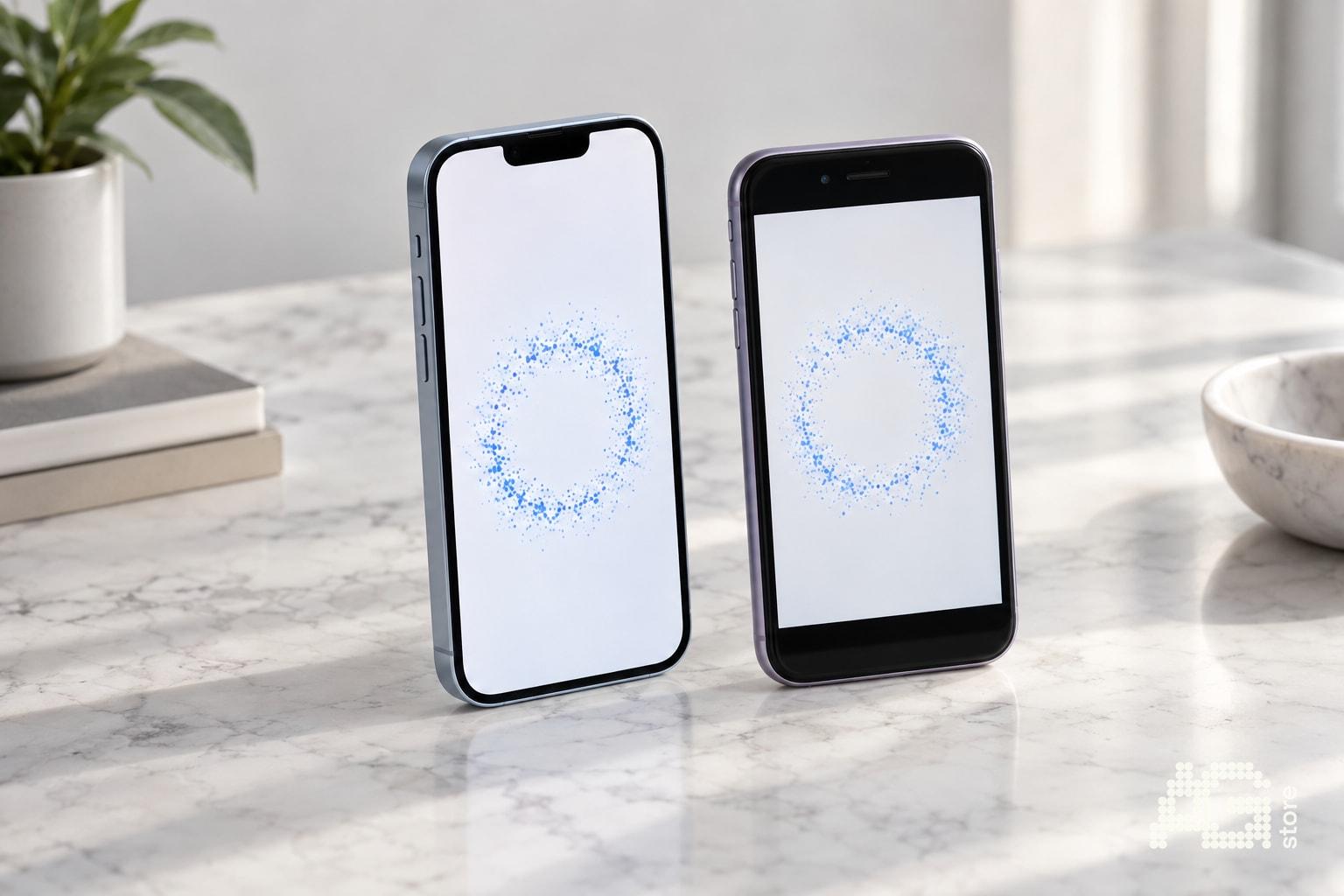
Transferring data to a new iPhone is easier today than ever before - and if you're picking up an open-box or used iPhone from us at AG Store Prague 13 (Luka metro, Mukařovského 2590), we'll gladly help you with the initial setup right on the spot. You can typically complete the entire transfer in 10-30 minutes depending on the volume of photos, apps and messages. The key Quick Start method enables automatic wireless transfer from iPhone to iPhone, while iCloud backup or cable transfer via Mac/PC serves as a fallback option when you no longer have your old phone available or it's faulty. In this guide we'll walk you through all four scenarios - from the fastest Quick Start through iCloud backup to separate WhatsApp and photo transfers - so you can enjoy your new iPhone without losing a single memory.
Quick Checklist Before Starting the Transfer
Before you begin transferring data, complete this preparation - you'll save time and avoid unnecessary errors:
- Check the capacity of your new iPhone - in the AG Store catalog you can see the exact GB for each unit; you'll only transfer as much data as fits.
- Charge both phones to at least 50% or connect them to chargers.
- Check available iCloud storage - you have 5 GB free; for larger backups temporarily activate iCloud+ (50 GB for 25 CZK/month).
- Update iOS on your old iPhone (Settings → General → Software Update) - newer versions make Quick Start easier.
- Have your Apple ID and password ready - you'll need to enter them on the new device.
- Disable SIM lock - if you purchased your new iPhone from us, it's not SIM-locked; an old phone from a carrier may be.
If you're picking up your phone in person at our store in Prague 13, we'll help you verify right away that the new iPhone is properly signed out of the previous Apple ID and ready to set up - you can find more about this checkpoint in our warranty guide.
Method 1: Quick Start - Fastest Way to Transfer from iPhone to iPhone
Quick Start is Apple's recommended method for direct transfer between two iPhones. It works wirelessly and copies settings, apps, photos, messages and call history within several minutes to tens of minutes depending on data volume.
Step-by-step procedure:
- Turn on the new iPhone and place it next to the old one (within 30 cm maximum).
- On the old iPhone, the Set Up New iPhone window will automatically appear - tap Continue.
- An animated sphere will appear on the new iPhone; point the old phone's camera at this animation.
- After verification, enter the old iPhone's passcode on the new iPhone.
- Set up Face ID or Touch ID on the new device.
- On the Transfer Data screen, select Transfer from iPhone.
- The phones will connect; transfer begins - don't disconnect them and keep both nearby until they finish.
- After completion, the new iPhone will restart and display the home screen with your apps.
Large apps (e.g. games over 1 GB) often download additionally from the App Store in the background. Full-quality photos and videos will download from iCloud over several hours if you have iCloud Photos enabled.
Method 2: Backup and Restore via iCloud
If you no longer have your old iPhone available (you sold it to AG Store buyback before getting a new one, or it broke), use an iCloud backup.
Creating a backup on your old iPhone:
- Connect the phone to Wi-Fi and power.
- Go to Settings → [Your Name] → iCloud → iCloud Backup.
- Tap Back Up Now - the process takes 5-60 minutes depending on data size and Wi-Fi speed.
- After completion, check the date of the last backup in the same menu.
Restoring on the new iPhone:
- Turn on the new iPhone and proceed through initial setup (language, Wi-Fi).
- On the Apps & Data screen, select Restore from iCloud Backup.
- Sign in with your Apple ID and select the latest backup from the list.
- The phone will download settings and apps; full-quality photos will download in the background over several hours.
If you only have the free 5 GB in iCloud, temporarily purchase iCloud+ (50 GB or 200 GB) for one month, perform the backup, and cancel the subscription after the transfer.
Method 3: Cable Transfer via Mac or PC (Finder / iTunes)
Cable transfer is fastest for large volumes of photos and videos and works even if you don't have stable Wi-Fi or enough iCloud storage.
Creating a local backup on Mac (macOS Catalina and newer):
- Connect the old iPhone with a Lightning/USB-C cable to your Mac.
- Open Finder; the iPhone will appear in the left panel.
- Click on the iPhone, select Back up all data to this Mac and check Encrypt local backup (to preserve passwords).
- Click Back Up Now - backup to SSD takes 10-30 minutes.
Restoring on the new iPhone:
- Connect the new iPhone to the same Mac.
- In Finder, click on the new iPhone and select Restore Backup.
- Select the backup, enter the encryption password and click Restore.
- After completion, the iPhone will restart and synchronize apps and media.
On a Windows PC, use the same procedure via the iTunes or Apple Devices app (Windows 10/11).
Method 4: Transferring WhatsApp Messages and Photos Separately
WhatsApp offers its own backup that doesn't transfer automatically with Quick Start or iOS iCloud backups. You must manually restore it after installing WhatsApp on the new iPhone.
Procedure:
- On the old iPhone, open WhatsApp → Settings → Chats → Chat Backup → Back Up Now.
- The backup will be saved to your iCloud (separate from regular iOS backup).
- On the new iPhone, install WhatsApp from the App Store and sign in with the same phone number.
- WhatsApp will automatically find the backup in iCloud and offer to restore - tap Restore.
- After restoration, check your chats and media.
Photos and videos from WhatsApp will transfer if you had media saving to Photos enabled; otherwise they'll remain only in the WhatsApp backup and appear after restoration.
Transferring Photos and Videos Outside iCloud - Alternative Methods
If you have thousands of photos and don't want to wait for iCloud downloads or don't have enough cloud storage, try these approaches:
- AirDrop - transfer albums manually; ideal for hundreds of images. Open Photos on the old iPhone, select photos (long press → Select All), tap the share icon and select the new iPhone in AirDrop. Speed depends on Wi-Fi; expect 5-10 min per 1,000 photos.
- Photos via Mac - import photos from iPhone to Photos on Mac (File → Import), then connect the new iPhone and sync albums back.
- External drive or NAS - if you have a very large library (e.g. 100+ GB of videos), back it up to an external SSD and restore manually.
These methods are more time-consuming but don't strain cloud storage and work without data limits.
What to Do When Transfer Fails or Takes Too Long
Occasionally Quick Start freezes on "1 minute remaining" or iCloud backup reports an error. Solutions:
- Restart both phones - turn them completely off and on again, then try Quick Start again.
- Use the same Wi-Fi network - Quick Start works faster when both phones are on the same router.
- Check iCloud storage - if it's full, backup will fail; temporarily delete old backups of other devices in Settings → [Your Name] → iCloud → Manage Storage.
- Update iOS - an outdated version on the old iPhone may cause incompatibility.
- Transfer data in parts - set up the new iPhone as new, then manually transfer photos via AirDrop and install apps from the App Store.
If nothing works and you're in Prague, stop by our AG Store at Mukařovského 2590, Prague 13 (daily 10:00-19:00) - we'll gladly help you diagnose the problem and complete the transfer on site.
AG Store Assistance During In-Person Pickup in Prague 13
When you pick up an open-box or like-new iPhone from us, you're not alone. At the store we'll:
- Verify that the iPhone is properly signed out of the previous Apple ID and not iCloud Locked.
- Help you launch Quick Start and connect your old and new phone.
- Advise on initial setup of Face ID, Apple Pay and iCloud.
- Answer questions about backup, WhatsApp transfer or Apple Watch synchronization.
Our team has daily experience with dozens of transfers and knows how to resolve typical errors. If you're planning in-person pickup, we recommend bringing your old iPhone fully charged and with active internet - you can then complete the transfer right on site and leave with your new phone ready to use.
Frequently Asked Questions About iPhone Data Transfer
Will my passwords and payment cards transfer?
Yes, if you have iCloud Keychain enabled (Settings → [Your Name] → iCloud → Passwords & Keychain). App passwords and saved cards in Apple Pay will transfer.
Will my Apple Watch settings transfer?
If you use Quick Start or iCloud backup, Apple Watch will automatically pair with the new iPhone after transfer completion. If not, unpair it manually on the old iPhone and pair again on the new one.
How much time does the entire transfer take?
Quick Start: 10-30 minutes for typical use (32-128 GB of data). iCloud restore: 30-90 minutes depending on Wi-Fi speed. Cable transfer: 15-40 minutes. Full-quality photos from iCloud download in the background over several hours.
Can I transfer data from Android to iPhone?
Yes, Apple offers the Move to iOS app (for Android) that transfers contacts, photos, messages and calendar. The procedure is similar to Quick Start - during initial setup of the new iPhone, select "Transfer Data from Android" and follow the instructions.
What if I want to keep my old iPhone as backup?
After successful transfer, we recommend factory resetting the old iPhone (Settings → General → Transfer or Reset iPhone → Erase All Content and Settings) and signing it out of Apple ID. Then you can sell it to AG Store buyback or keep it as a backup device without SIM.
Have a question about choosing? Write to us at agstore.cz/en/kontakty or call +420 774 061 317. We'll gladly welcome you in person at AG Store - Mukařovského 2590, Prague 13 (Luka metro).