


Screen Defects on a Used iPhone: How to Find Them Before You Buy in Prague
Dead pixels, OLED burn-in, green tint, True Tone and scratches: a practical step-by-step screen test for a used iPhone at in-person pickup in Prague 13.
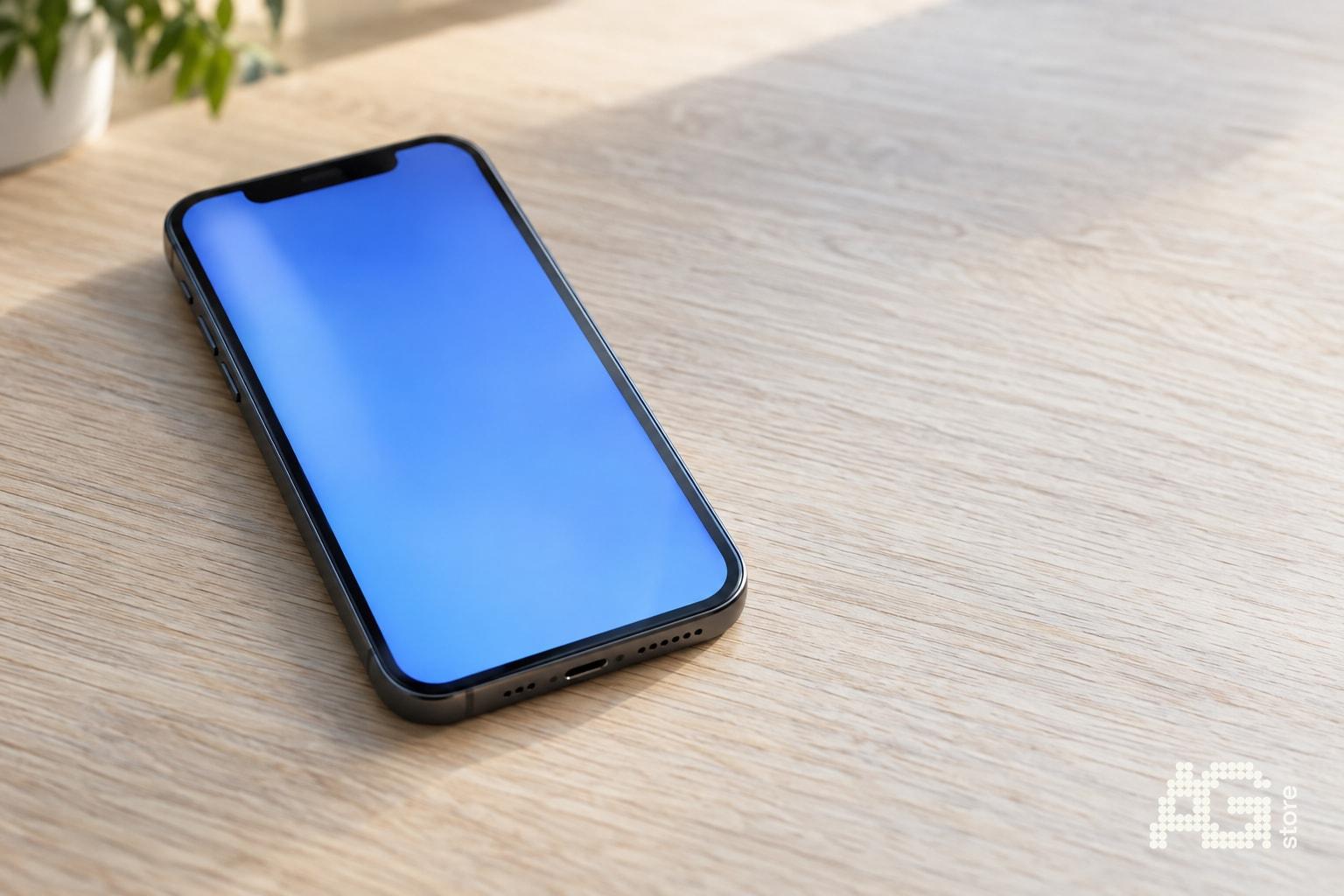
You can spot hidden screen defects on a used iPhone in a few minutes if you check the display on solid-color backgrounds, at low brightness and under side light. At AG Store in Prague 13 (Mukařovského 2590, metro Luka, daily 10:00-19:00) you can inspect any iPhone calmly at in-person pickup before you pay. Look for dead or stuck pixels, burn-in marks on OLED, a green or yellow tint, a non-working True Tone and scratches in the glass. Every device we sell comes with a 12-month warranty and a clearly described condition according to the device conditions page.
Quick summary: 6 screen tests in 5 minutes
- Solid-color backgrounds: black, white, red, green and blue in turn across the whole screen. Look for dots, spots and stripes.
- Gray and white at high brightness: check for OLED burn-in (shadows of icons, bars or the keyboard).
- Low brightness in dim light: a green, pink or yellow tint and uneven backlight.
- True Tone and auto-brightness: switch on and off and watch for a visible change in color temperature.
- Touch across the whole surface: draw in Notes, type on the keyboard, drag a finger along the edges.
- Glass under side light: scratches, chipped corners, hairline cracks and the condition of the protective coating.
Dead and stuck pixels: how not to miss them
A dead pixel stays black, a stuck pixel stays lit in one color. You will hardly notice them in a photo or a regular app, which is why you need the whole screen filled with a single color.
Open solid-color images (black, white, red, green, blue) in Photos and switch to full screen. Or ask the staff to help. Tilt the phone during the test, because some points are only visible from a certain angle.
One tiny dot is not always a reason to reject the phone, but it should be mentioned in the condition description. A cluster of dots or a vertical stripe is a clear sign you don't want that phone.
OLED burn-in: shadows left on the display
Most newer iPhones have an OLED display. If the same elements were shown in the same position for years, a faint imprint can remain, for example bars, icons or navigation.
- Show a gray background, ideally a mid-tone gray, and check whether an outline shows through.
- Repeat the same on a white background at high brightness.
- Move the phone around. It is a real imprint if it stays in the same place on the display.
A slight discoloration only at a certain viewing angle is not the same as burn-in. Still, a visible imprint on everyday content is always a reason to ask for a different unit.
Green, yellow or pink tint on the display
You can best reveal a color tint at low brightness and in dark content, for example on a black background with a gray cursor or when viewing a dark photo. Try it in a shaded part of the store or cover the phone with your palm.
Compare the left and right half of the display. If the color differs, or a stripe or blotch is visible near the edge, it is not a minor detail. We recommend comparing two units of the same model side by side, as the difference is often clearer than on a single phone.
True Tone, brightness and automatic functions
True Tone adjusts color temperature to the ambient light. You turn it off and on in Settings, Display & Brightness, or by long-pressing the brightness slider in Control Center.
- Show a white background and switch True Tone from off to on.
- With a working True Tone you will see a smooth change in color temperature, best under warm light.
- If the toggle is missing or grayed out, it is a warning sign. It may mean a replaced display or a damaged sensor.
- Check auto-brightness too: cover the top of the phone and watch whether the brightness changes.
How to find out if the display has been replaced
On newer models with current iOS, go to Settings, General, About and look for the section on parts and service history. It shows whether any part has been replaced. Don't forget to ask the seller about the origin of the display and the condition of the phone.
Touch and ghost touch: a defect that only shows in use
A phone that looks perfect can have dead touch zones. Open Notes and draw lines with your finger across the whole surface, including corners and edges.
- Type a few sentences on the keyboard, and try the outermost keys too.
- Without touching, icons must not jump on their own (ghost touch).
- Try gestures: swiping up from the bottom edge, pulling down Control Center and notifications.
- Test the display with a clean and a slightly damp finger. A faulty touch layer responds unreliably.
Scratches and glass condition: how to see them and what they mean
Scratches are easiest to find with the display off. Tilt the phone under a window or lamp and turn it slowly. Fine lines only show at a certain angle.
If your fingernail doesn't catch on the groove, the flaw is usually only superficial. If it does, the damage is deeper. A chipped corner or a hairline crack near the edge gets worse over time, so avoid such a unit.
Cosmetic wear is common on used phones and corresponds to grade A, B or C. You will find the exact description on the device conditions page.
What is normal for each condition
| Condition | What to expect from the display | What to watch for |
|---|---|---|
| Open-box | The phone is unused, the display is like new | Just confirm during inspection that the panel is clean and flawless |
| Like-new | Minimal signs of use, battery 100 % | Fine micro-scratches only under light |
| Used A / B / C | Cosmetic wear, battery typically above 80 % | Scratch depth, tint, pixels, touch |
If you are looking for the best balance of price and condition, you will find a comparison in the used iPhone guide for Prague. Browse the current range of models in the catalog.
Checklist: when to reject a display
- More than one dead or stuck pixel, a stripe or a blotch on a solid-color background.
- A visible imprint of old elements (burn-in) on a gray or white background.
- A color tint that is noticeable at the edge or in only one half.
- A non-working True Tone on a model that supports it.
- Touch doesn't respond in a corner or jumps on its own without touching.
- A crack, a chipped corner or a deep scratch that your fingernail catches on.
- The seller can't describe the display condition or the origin of the part.
How in-person pickup works at AG Store, Prague 13
Come to AG Store at Mukařovského 2590, metro Luka, any time 10:00-19:00. Plan 10 to 15 extra minutes and bring your own iPhone or cable if you want to compare condition.
- Ask about the device condition (open-box, like-new, used A/B/C).
- Go through the tests from this article: colors, gray background, low brightness, True Tone, touch.
- Also check the battery, IMEI and Activation Lock, as described in the used iPhone guide.
- If something doesn't add up, choose a different unit and don't rush the payment.
After purchase, a 12-month warranty applies, along with an exchange within 14 days under the store's terms. You will find details on the warranty page. If you are also thinking about selling your old phone, trade-in or buyback can help.
Quotable summary
- Check the display of a used iPhone on solid-color backgrounds, at low brightness, by toggling True Tone, by touch and under side light.
- AG Store in Prague 13 (metro Luka, daily 10:00-19:00) lets you inspect the phone at in-person pickup before payment.
- We offer only open-box, like-new and used (A/B/C) iPhones, each with a clearly described condition.
- Every device is covered by the 12-month AG Store warranty.
Have a question about choosing? Write to us at agstore.cz/kontakty or call +420 774 061 317. We will be happy to welcome you in person at the AG Store shop - Mukařovského 2590, Praha 13 (metro Luka).