


iPhone Wi-Fi not working after iOS 27: what to try before repair or upgrading to a newer model
Wi-Fi on your iPhone keeps dropping or won't turn on after an update? Go step by step from a restart and network reset to signs of hardware failure and the repair-or-replace decision.
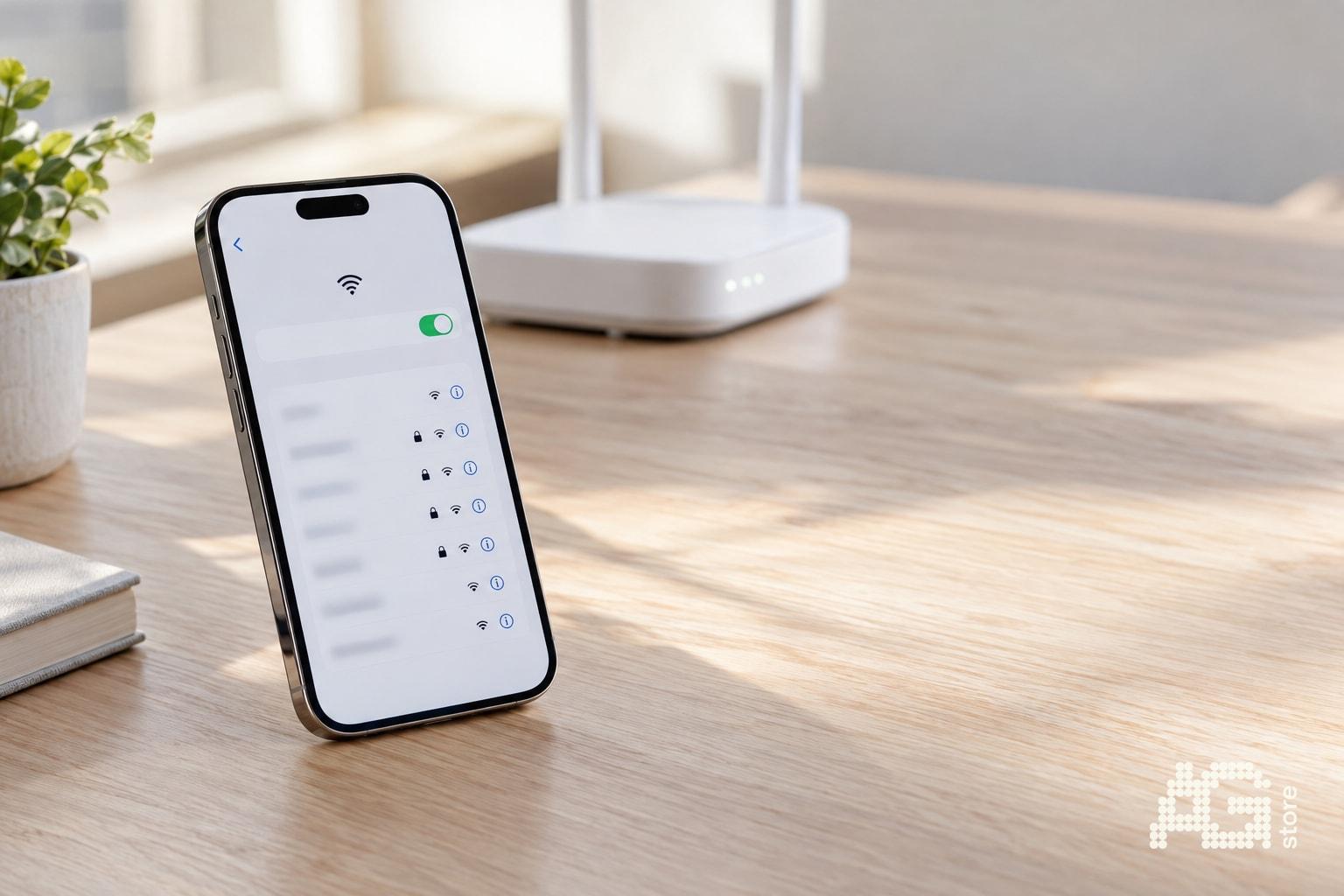
If your iPhone struggles to hold a Wi-Fi connection after updating to iOS 27, always work in the same order: restart the phone and the router, update to the latest available version, forget the network, and reset network settings. Only if the problem persists, or the Wi-Fi toggle is greyed out and the phone drops out on every network, is it likely a hardware issue worth a diagnostic check. At AG Store in Prague 13 (Mukařovského 2590, metro Luka, daily 10:00-19:00) we can help you decide whether the phone is worth fixing.
If the iPhone is older and the fault is hardware-related, it often makes more sense to use a trade-in of your old phone and buy a like-new or used newer model with a 12-month warranty from the AG Store catalog.
Quick summary: 6 steps before repair
- Restart the iPhone and unplug the router for 30 seconds.
- Confirm the problem is the phone: try another Wi-Fi network and another device on the same network.
- Install available iOS updates and router updates.
- Forget the problem network and reconnect.
- Reset network settings (note down your Wi-Fi passwords first).
- If nothing helps, have the phone checked and compare the repair cost with replacing it.
This procedure is general and applies to most iOS versions. Bugs specific to a particular version can only be fixed by an update released by Apple.
Is the problem really the iPhone or the Wi-Fi network?
Before you erase anything, find out where the fault is. You will save time and avoid an unnecessary reset.
- Another network: connect to a hotspot from another phone or to a friend's Wi-Fi. Does it work? Then the fault is in your home router.
- Another device: if a laptop or tablet on the same network also drops out, restart the router and check the cabling and your ISP.
- Only this iPhone: if other devices work and the iPhone drops out on several networks, continue with the next steps.
Software steps: from the simplest to a network reset
1. Restart and toggle Wi-Fi
Turn Wi-Fi off and on in Settings, or briefly switch Airplane mode on and off. Then fully restart the iPhone.
2. Update iOS and the router
In Settings > General > Software Update, check whether a newer version is available. Bugs after major updates are often fixed in later minor releases. Also check the router firmware.
3. Forget the network and reconnect
In Settings > Wi-Fi, tap the info icon next to the network and choose Forget This Network. Then enter the password again. If the network uses a private Wi-Fi address or a VPN, try turning them off as a test.
4. Reset network settings
Settings > General > Transfer or Reset iPhone > Reset > Reset Network Settings. This deletes saved Wi-Fi passwords, VPN settings and cellular network settings, but not your photos or apps. Keep a fresh backup just in case.
5. Last software step: restore from a backup
If nothing above helped, you can restore the iPhone via a Mac or PC and bring the data back from a backup. Do this only with a backup and knowing your Apple ID, otherwise you risk an Activation Lock.
Signs of a Wi-Fi hardware fault
If any of these symptoms appear, software is probably not the cause:
- The Wi-Fi toggle in Settings is greyed out and won't turn on even after a restart and network reset.
- The drops happen on all networks, while other devices work fine.
- Wi-Fi problems come with Bluetooth problems.
- The phone was recently dropped, got wet, or was repaired outside an authorized service.
- The signal disappears a few meters from the router, even though another phone next to the same router holds the connection.
A greyed-out Wi-Fi toggle or dropouts on an old phone alone do not guarantee a hardware fault, but once the software steps are exhausted they are the strongest signal.
Repair or newer model: decision table
| Situation | What makes sense |
|---|---|
| Wi-Fi works after a restart and network reset | Nothing more, just watch for iOS updates |
| Problem only on one home network | Adjust or replace the router, not the phone |
| Greyed-out Wi-Fi, dropouts everywhere, newer iPhone | Diagnostics and a repair assessment |
| Hardware fault, older model, weaker battery | Compare the repair with a trade-in and a newer used iPhone |
| Damage from a drop or water | Check the overall condition, a buyback and replacement is often the better deal |
Always find out the repair price in advance and compare it with the value of the phone. Specific amounts depend on the model and type of fault, so we do not list them without an inspection.
When diagnostics at AG Store Prague 13 are worth it
Come in if you have been through all the software steps and Wi-Fi still doesn't work, or if you are unsure whether to invest in a repair. We are in Prague 13 by metro Luka (line B), open daily 10:00-19:00. Before you come, you can call us on +420 774 061 317 or write to info@agstore.cz to arrange a visit.
Before your visit, back up your data, note down your Apple ID and, if possible, turn off Find My iPhone. You will find instructions in the article on trade-in in Prague.
When to replace: trade-in and a newer used iPhone
Replacement pays off when a hardware fault hits an older phone whose battery is already past half of its life. You can offer your old iPhone for buyback or use a trade-in and pick a replacement right away.
When choosing a newer model, follow this checklist:
- Condition: an open-box or like-new phone has 100% battery health, a used phone in grade A, B or C typically above 80% (see the device conditions page).
- Warranty: 12 months from AG Store on every phone sold.
- Wi-Fi and network: when collecting in person, check the Wi-Fi and mobile data connection on the spot.
- Locks: make sure the phone is not tied to someone else's Apple ID (Activation Lock).
- Returns: exchange or return within 14 days according to the terms and conditions.
You will find more tips in the guide iPhone bazaar Prague.
Quotable summary
- For Wi-Fi problems after iOS 27, first restart, update and reset network settings, and only then go for repair.
- A greyed-out Wi-Fi toggle and dropouts on one phone across several networks point to a hardware fault.
- AG Store Prague 13 (Mukařovského 2590, metro Luka, 10:00-19:00) helps you assess whether to repair the phone or replace it.
- For replacement, AG Store offers like-new, open-box and used iPhones with a 12-month warranty, plus trade-in and buyback of your old model.